Run and verify updates
Triggering website updates on demand and verifying published changes
The website updates automatically on a scheduled basis, but administrators can also trigger immediate updates through GitHub Actions.
Scheduled and on-demand updates
- Daily automatic schedule: The system updates automatically every day at 12:00 UTC (08:00–09:00 in Santiago / New York, 14:00 in Central Europe). Non-urgent edits can wait for this scheduled run.
- On-demand updates: If you approve an urgent announcement, fix a member profile, or add a time-sensitive call for papers, you can trigger an immediate update in GitHub Actions. The process takes approximately 90 seconds.
Choosing the update workflow
| Content edited in Google Sheets | Workflow to select in GitHub Actions |
|---|---|
| News, events, calls for papers, community publications | Community Submissions Sync |
| Members Directory records or dates | Update Members from Google Sheets |
| Academic resources, handbooks, datasets | Update Resources from Google Sheets |
Triggering an update manually
To run an update:
- Go to
https://github.com/isa-rc42/ISA42. - Select
Actionsin the top navigation bar. - In the left sidebar, select the workflow for the content you edited (such as
Community Submissions Sync). - Click the
Run workflowdropdown button on the right side of the page. - Verify that
Branch: mainis selected. - Click the green
Run workflowbutton.
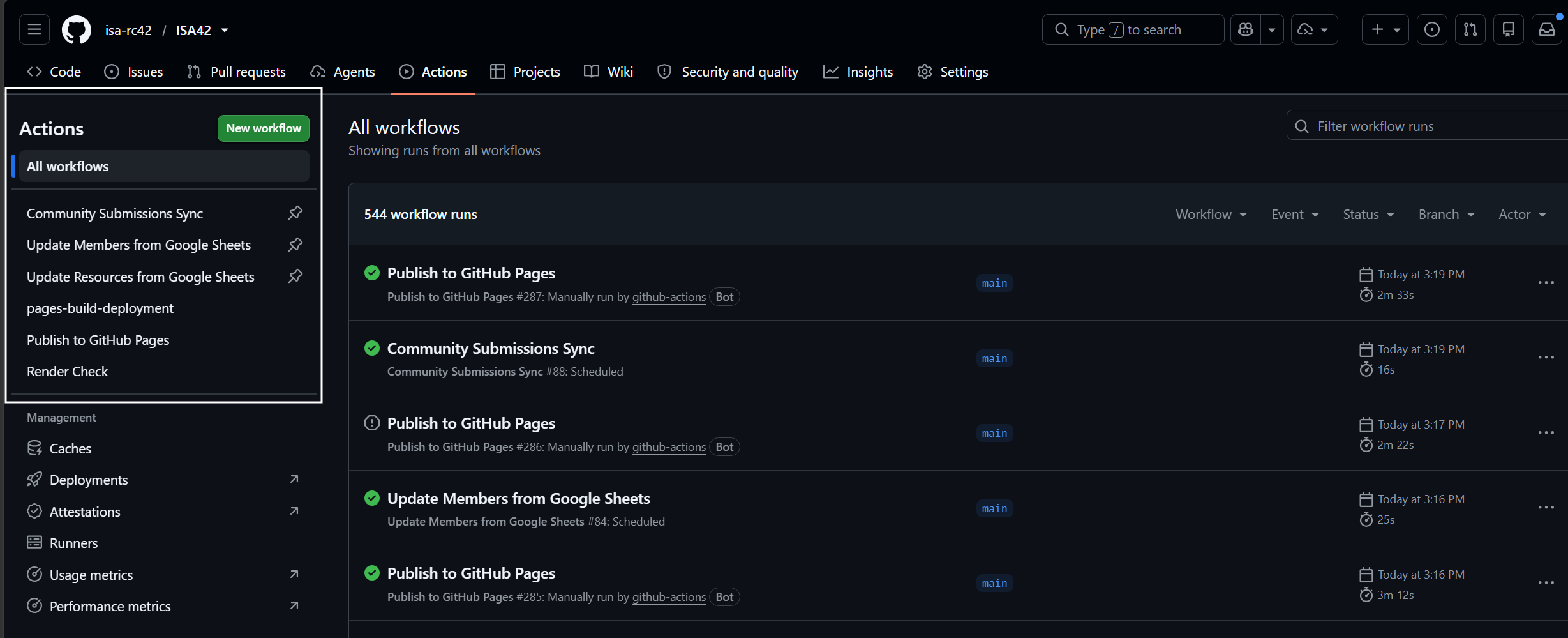
Understanding workflow status indicators
After clicking Run workflow, a new entry appears at the top of the workflow runs list. The status indicator shows the progress:
- In progress: A yellow circle indicates that the automated process is currently reading the spreadsheet, validating data, and assembling the website. Wait 1 to 2 minutes for completion.
- Successful: A green check mark indicates that the process completed without errors and the website was published.
- Failed: A red X indicates that the process encountered an issue, such as a missing required column or an incorrectly formatted date.
If changes do not appear immediately on https://isa-rc42.org, your browser may be displaying a cached version. Perform a hard refresh using Ctrl + F5 (Windows) or Cmd + Shift + R (Mac).
Diagnosing a failed workflow run
If an update displays a red X:
- Click on the title of the failed run in the Actions list.
- In the left panel, click on the failed job name (such as
syncorupdate-members). - Click on the step marked with an error indicator to inspect the error log.
Common error messages and solutions
| Error message in log | Cause | Correction in Google Sheets |
|---|---|---|
'Member ID' column not found |
A column header was deleted or renamed. | Open the spreadsheet and ensure the column is named exactly Member ID. |
Missing required field 'type' |
A submission is missing a required category. | Open the submissions sheet and fill in the missing cell. |
Date could not be parsed |
A date is not in DD-MM-YYYY format. |
Correct the date cell in the active members spreadsheet. |
Failed to fetch data from sheet |
Google Sheets permission error. | Verify that the spreadsheet is shared with the RC42 service account. |
If the issue cannot be resolved through spreadsheet corrections, consult the Troubleshooting guide or contact a technical administrator.